How to copy a table from a website into ChatGPT, Claude or Excel without it falling apart
In short
- Pasted tables fall apart because chats take plain text and spreadsheets take messy HTML.
- Markdown is what AI tools read best, and it is compact.
- Excel wants a real .xlsx or TSV, not a paste.
In this guide
Copy a table from a web page, paste it into ChatGPT, and you get a wall of text. The model has to guess which number belongs to which column, and it guesses wrong often enough to make the whole exercise pointless. Paste the same table into Excel and every cell lands in column A. Here is why that happens and the fastest ways around it.
Why it falls apart
When you copy from a web page, the browser puts two versions on the clipboard: rich HTML and plain text. Chat boxes take the plain text, which has no notion of columns, only line breaks and spaces. Spreadsheets take the HTML, but web tables are full of merged cells, nested layout tables, footnote markers and hidden rows, so what arrives is only loosely related to what you saw.
What AI tools actually want: Markdown
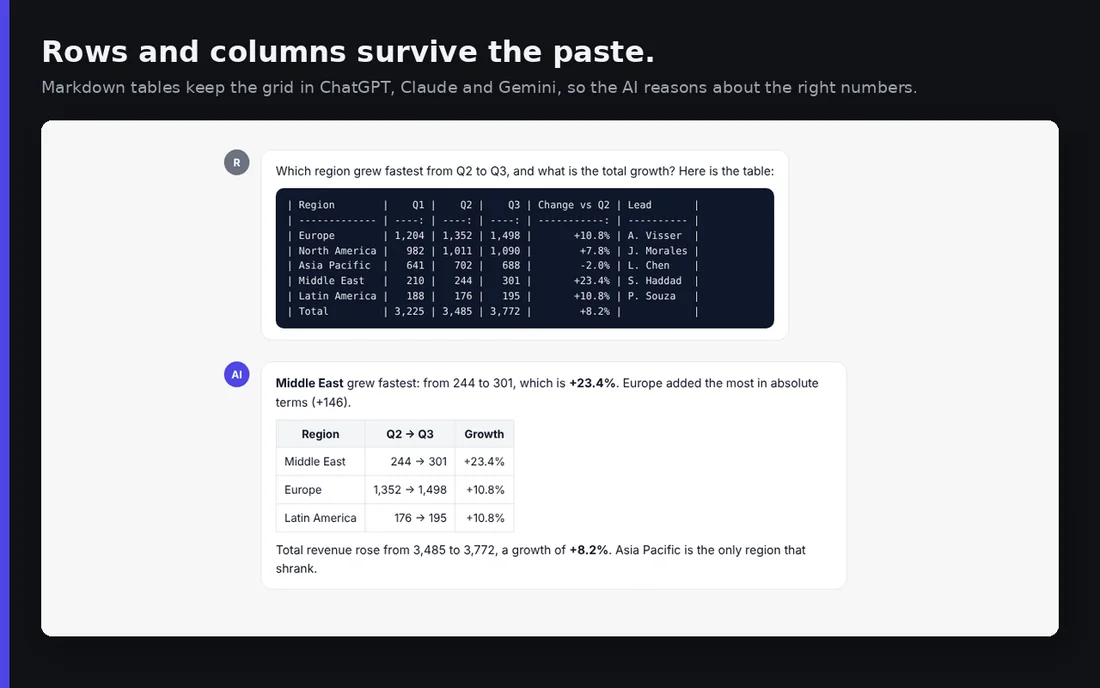
ChatGPT, Claude and Gemini all read Markdown tables perfectly. A Markdown table is plain text with pipes between the cells:
| Region   | Q1    | Q2    | Change |
| -------- | ----: | ----: | -----: |
| Europe   | 1,200 | 1,350 | +12.5% |
| Americas |   980 | 1,010 |  +3.1% |
Every cell is unambiguous, so questions like "which region grew fastest" or "sum Q2" get correct answers. It is also compact: a Markdown table uses far fewer tokens than the HTML it came from, so more of the context stays available for your actual question.
Three ways to get a clean copy
1. Select and paste into a spreadsheet first
Select the table with the mouse, paste into Google Sheets or Excel, fix the merged cells by hand, then copy from the sheet into the chat as tab separated text. It works for simple tables and costs a few minutes per table. Footnotes, line breaks inside cells and merged headers usually need manual cleanup.
2. Ask the AI to fetch the page
Some assistants can read a URL. It is convenient when it works, but many sites block crawlers, pages behind a login are unreachable, and you have no control over which table the model picks or how it parses it. For anything that matters, you want to see the data before the model does.
3. Use an extension that converts the table for you
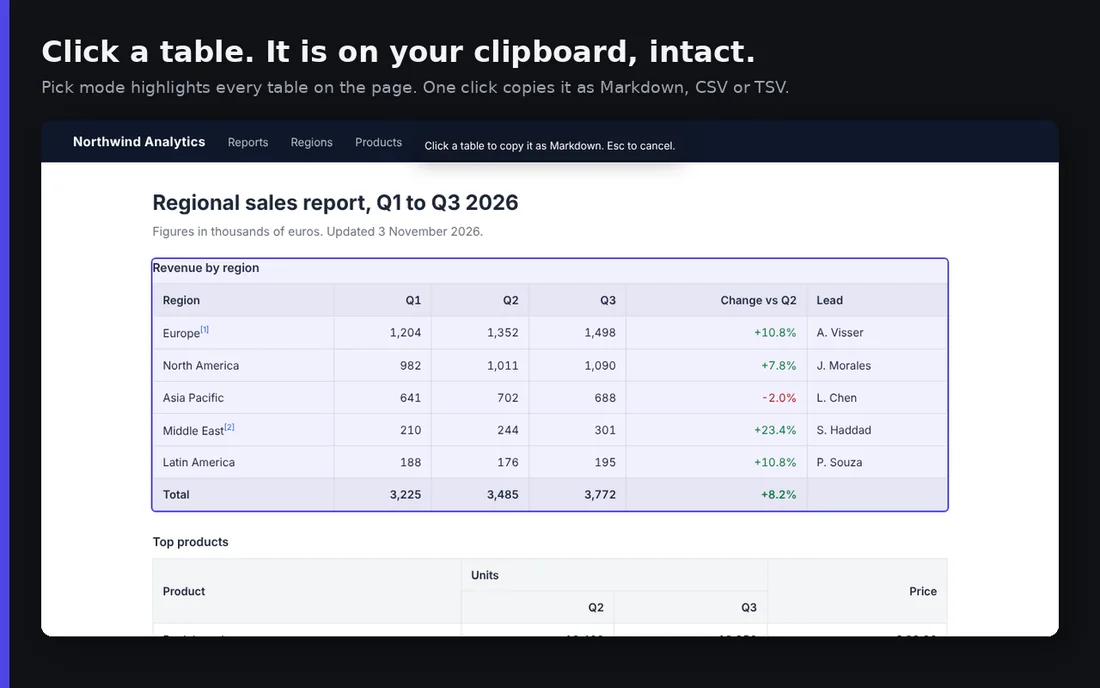
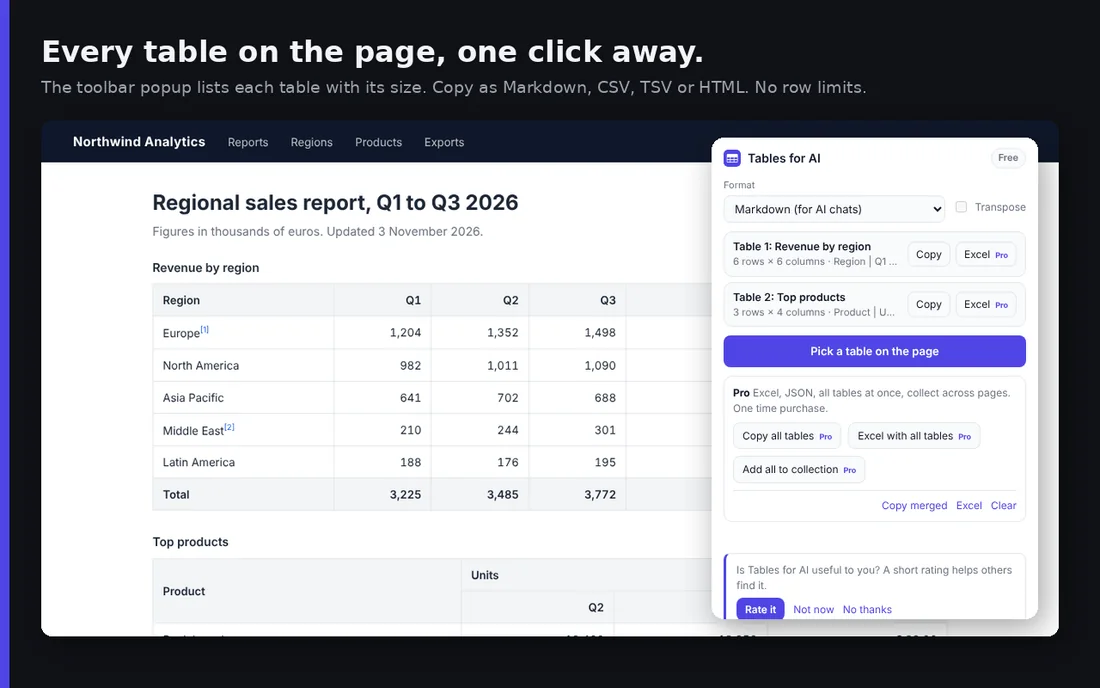
Tables for AI adds a pick mode to your browser: press the shortcut, click a table, and it is on your clipboard as a Markdown table, with merged cells expanded, footnote markers removed, hidden rows skipped and numeric columns right aligned. The same click gives you CSV or TSV instead. TSV is the format that pastes straight into Excel and Google Sheets, one value per cell, no import wizard.
Getting it into Excel as a real file
For a one off, TSV on the clipboard is enough. When you need numbers to be numbers (so formulas work), a header row that stays visible while you scroll, or several tables from one page in one workbook, export a real .xlsx file. Tables for AI Pro writes one directly from the page, with European and American number formats both recognised, so 1.234,56 and 1,234.56 both become 1234.56.
Paginated lists
Search results, order histories and catalogues spread one logical table over many pages. Copying page by page and stitching them together is where most people give up. The trick is to collect: add the table from each page to a collection as you click through, then export once. Tables with the same header are merged into one, so a ten page list becomes a single sheet.
Tips for better answers from pasted tables
- Keep the header row. The model uses it to understand the columns, and Markdown requires it.
- Tell the model what the units are if the table does not say. "Amounts are in thousands of euros" saves a round of confusion.
- For long tables, ask for a summary or an aggregation first, then drill down. Pasting 2,000 rows and asking an open question rarely goes well.
- If the table contains customer names or account numbers, run it through Scrub for AI after copying. Placeholders keep the structure and the model still gives useful answers.
Copy tables without the mess
Tables for AI copies any web table as Markdown for AI chats, or as CSV, TSV, JSON and Excel. Merged cells, footnotes and hidden rows are handled for you. Free, no account.
More: all guides · Scrub for AI · Copy for AI · Tables for AI